
Integral 2 manual — RS232 commands, IR codes and the app
Chapter 6 of the online manual, covering pages 47–55 of the official PDF: the complete RS232 command list for V1.13 MCU, the IR code list with NEC codes, and the Total Control APP for Android and iOS. Download the original PDF or go back to the table of contents.
RS232 control: wiring and parameters (p.47–48)
The Integral 2 RS232 jack expects the following plug signals: TIP = TX (sends data out from Integral 2), RING = RX (receives data to Integral 2), SLEEVE = GND. Parameters: 19200, n, 1, no handshake. Every command must start with the # character and must end with a carriage return \r or a newline \n. Use only lowercase characters. (iRule users: use \x0D instead of \r, or \x0A for \n, to terminate the command string.)
RS232 command list (V1.13 MCU)
#get ver— shows the current Integral 2 FW versions#get status x— current status for the requested info; x can be rx0, rx1, tx0, tx1, tx0sink, tx1sink, aud0, aud1#get audiochbot/#get audiochtop— returns the audio mode LPCM / bitstream from the selected input#set hotplug— issue hotplug event to the sources#set input x/#get input— change the input port; x can be top/bot/thru/swap#set autosw x/#get autosw— toggle input auto switching; if on, the input changes to an active input if the current input is switched off; x = on/off#set autoswprio x/#get autoswprio— toggle auto switching priority; if on, the input is force-changed when a new source is connected; x = on/off#set scale x/#get scale— change scaling mode if the scale slide is centred; x = auto/custom/none#get hdcpswitchpos— returns the position of the HDCP slide switch#set hdcp x/#get hdcp— change the output HDCP level if the HDCP slide is centred; x = 14/22#get edidswitchpos— returns the position of the EDID slide switch#set edidmode x/#get edidmode— change the EDID mode if the EDID slide is centred; x = automix/custom/fixed/copytop/copybot#set edidtable x/#get edidtable— select the custom EDID table for port 0 (and port 1 if not separately selected); range 1–100#set edidtabletop x/#get edidtabletop— select the custom EDID table for port 1; value 0 follows the Port 0 EDID; range 0–100#set edidalgo x/#get edidalgo— Automix mixing algorithm (AUTOMIX mode only): 0 = "Min Mixed Capabilities", 1 = "Max Audio, Min Video", 2 = "BOT Output Priority", 3 = "TOP Output Priority", 4 = "Max Audio, Max Video"#set edidaudio x/#get edidaudio— Automix audio flag; x = stereo/51/71/native/top (native = current sink capabilities mixed with the algorithm; top = TOP-port sink audio info)#set edidbt2020 x/#set edidhdr10 x/#set edidhlg x/#set ediddv x(+ matching#get) — force the BT2020 / HDR10 / HLG / Dolby Vision capability flag to the source; when not in force, sink capabilities are followed; x = on/off#set edidyuvremove x/#set edid3dremove x(+#get) — remove YCbCr 444/422 capability, or remove 3D capability; x = on/off#set hdrstr x/#get hdrstr— define a custom HDR string (data bytes separated by:), sent when hdrcustom is enabled#set hdrcustom x/#get hdrcustom— replace incoming HDR metadata with the custom string; x = on/off#set hdrdisable x/#get hdrdisable— disable all HDR info to the sink; x = on/off#set avistr x/#set avicustom x/#set avidisable x(+#get) — custom AVI InfoFrame string, enable it, or disable all AVI info (careful: with avidisable most TVs will no longer show any signal)#set vsistr x/#set vsicustom x/#set vsidisable x(+#get) — custom Vendor Specific InfoFrame string, enable it, or disable all VSI to the sink#set cec x/#get cec— toggle CEC; x = on/off#set cecla x/#get cecla— switch the CEC Logical Address between Audio System and Video Processor (ARC requires audio); x = audio/video#set cecstr x— transmit a CEC string to the network if CEC is enabled (example to turn off devices:#set cecstr 0f:36)#set jvcmacro x/#get jvcmacro— toggle JVC macro functionality; x = on/off#set jvcmacromode x/#get jvcmacromode— 0 = "Automatic", 1 = "Ignore Metadata", 2 = "Semi-Automatic", 3 = "Custom"#set osd x/#get osd— toggle the on-screen display; x = on/off#set osdfadevalue x/#get osdfadevalue— seconds the OSD stays visible on video parameter changes; 0 never fades#set osdtext x/#set osdtextstr x/#set osdmask x(+#get) — OSD custom text on/off, the text string (example:#set osdtextstr "HDfury Integral 2"), and the OSD masking region on/off#set logoled x/#get logoled— toggle the side logo LED; x = on/off#set mutebotaudio x/#get mutebotaudio— mute the bottom HDMI output audio#set audiovol x/#set audiobass x/#set audiotreb x(+#get) — analog L/R jack output: volume -102 to +12 dB, bass and treble -10 to +10 dB
IR code list (p.55, NEC codes)
The complete list of IR codes is supplied in Pronto HEX files with each firmware and GUI update — included in the firmware package — and the Integral 2 codes have also been submitted to Logitech Harmony and iRule. The NEC code for every command:
| Function | IR names (Integral 2_…) and NEC codes |
|---|---|
| Power / reset | poweron 0x70 0x16 · poweroff 0x70 0x15 · reset 0x70 0x0d |
| Inputs / matrix | inputsel1 0x70 0x0f · inputsel2 0x70 0x10 · inputsel3 (matrix thru) 0x70 0x11 · inputsel4 (matrix swap) 0x70 0x12 |
| Auto switch | autoswon 0x70 0x24 · autoswoff 0x70 0x25 · autoswprioon 0x70 0x26 · autoswpriooff 0x70 0x27 |
| Scaling | scaleauto 0x70 0x05 · scalenone 0x70 0x06 · scalecustom 0x70 0x07 |
| HDCP | hdcp14 0x70 0x1f · hdcp22 0x70 0x20 |
| EDID modes | edidautomix 0x70 0x22 · edidcustom 0x70 0x21 · edidfixed 0x70 0x23 · edidcopytop 0x70 0x13 · edidcopybot 0x70 0x14 · edidtopfollow 0x70 0x90 |
| EDID algorithms | edidalgo0–edidalgo4 = 0x70 0x60–0x64 |
| EDID audio flags | edidaudio2ch 0x70 0x3e · edidaudio51ch 0x70 0x3f · edidaudio71ch 0x70 0x40 · edidaudionative 0x70 0x41 |
| EDID video flags | edidbt2020on/off 0x70 0x3a/0x3b · edidhdr10on/off 0x70 0x29/0x28 · edidhlgon/off 0x70 0x2b/0x2a · ediddvon/off 0x70 0x6c/0x6d · edidyuvremoveon/off 0x70 0x3c/0x3d · edid3dremoveon/off 0x70 0x44/0x45 |
| EDID tables (port 0) | edidcustomtable1–100 = NEC 0x70 0x91–0xf4 (table N = 0x90 + N) |
| EDID tables (TOP port) | edidcustomtabletop1–100 = NEC 0x71 0x01–0x64 (table N = N) |
| HDR / infoframes | hdrcustomon/off 0x70 0x2c/0x2d · hdrdisableon/off 0x70 0x17/0x18 · avicustomon/off 0x70 0x19/0x1a · avidisableon/off 0x70 0x1b/0x1c · vsicustomon/off 0x70 0x1d/0x1e · vsidisableon/off 0x70 0x6a/0x6b |
| CEC | cecon 0x70 0x2e · cecoff 0x70 0x2f · ceclaaudioproc 0x70 0x32 · ceclavideoproc 0x70 0x33 |
| JVC macros | jvcmacroon 0x70 0x01 · jvcmacrooff 0x70 0x00 · jvcmacroMode0 0x70 0x02 · Mode1 0x70 0x03 · Mode2 0x70 0x04 · Mode3 0x70 0x08 |
| OSD | osdon/off 0x70 0x51/0x50 · osdfadeon/off 0x70 0x53/0x52 · osdsourcenameon/off 0x70 0x55/0x54 · osdvideofieldon/off 0x70 0x57/0x56 · osdvideoifon/off 0x70 0x59/0x58 · osdhdrdetailon/off 0x70 0x5b/0x5a · osdhdrifon/off 0x70 0x5d/0x5c · osdhdrrxonlyon/off 0x70 0x49/0x48 · osdaudioon/off 0x70 0x5f/0x5e · osdmaskon/off 0x70 0x46/0x47 · osdcustomtexton/off 0x70 0x8f/0x8e |
| Logo LED | logoledon 0x70 0x36 · logoledoff 0x70 0x37 |
Total Control APP for Android and iOS (p.53–54)
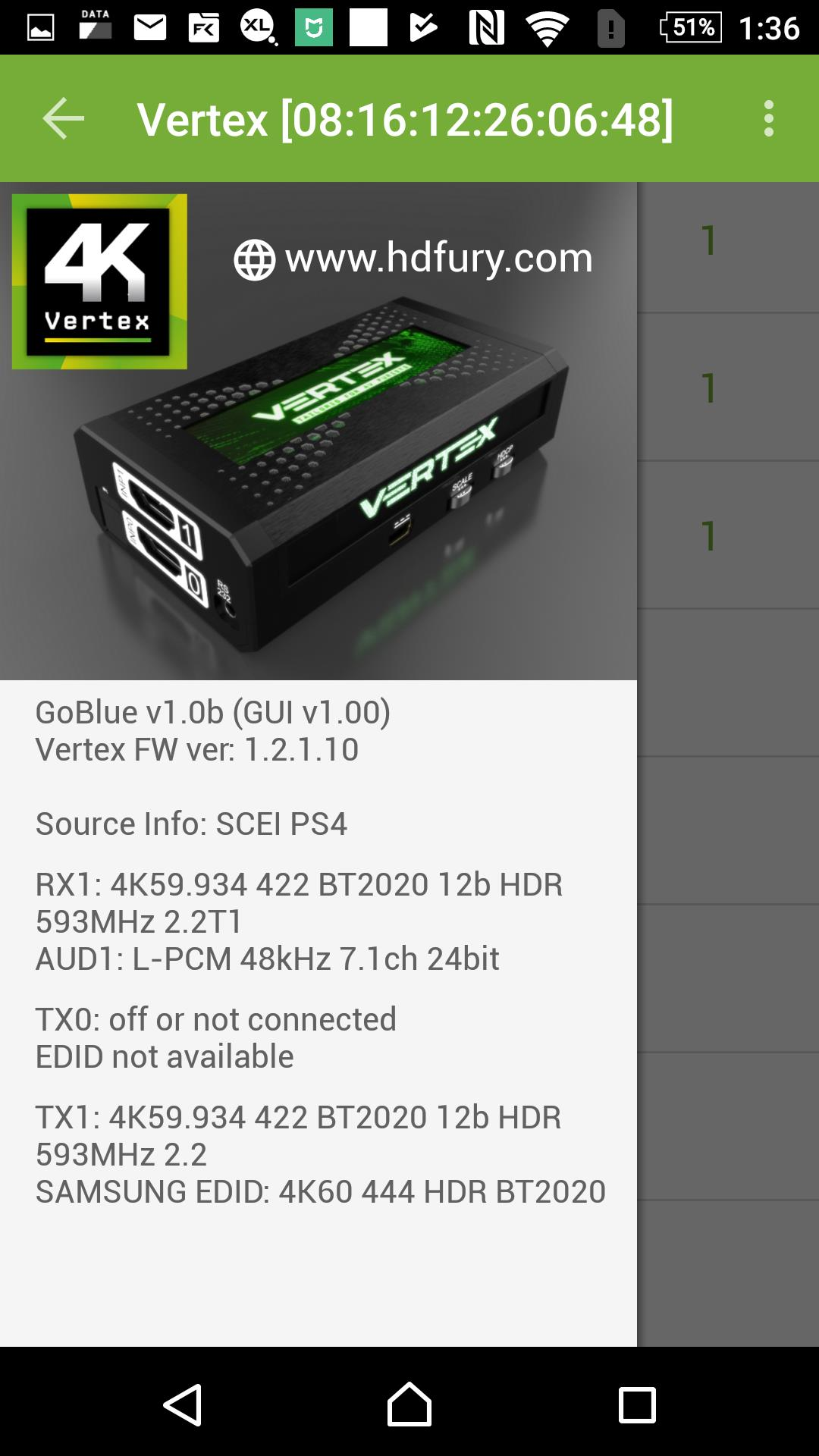
The 4K Integral 2 Total Control APP (requires the GoBlue Bluetooth dongle) requests Bluetooth authorization and SD card/file writing permissions when installing. It allows you to control and operate your HDfury Integral 2 and CEC components within your home theater setup: Reset/HPD/read/modify and upload configuration; switch input channel and Matrix/Splitter mode; auto switching and input priority; Logo LED on/off; define HDCP rules and fix HDCP errors; set EDID mode (Automix, Custom, Copy Top, Copy Bot, Fixed), Automix algorithm, enforceable video flags (BT2020, HDR10+, HDR HLG, Dolby Vision, 3D Remove, YCbCr) and audio flags (2.0, 5.1, full, native); set the Custom EDID for Port 0 and 1 separately (from a list of 100 EDID); select the scaling type (Auto, Custom, none), define Auto Scaling presets for Port 1 and Custom Scaling for Port 0 and 1; set mode, colorspace and deepcolor for any input type; disable HDR, AVI or VSI and replace metadata with a custom one; configure OSD data, mask and text; set the CEC device type and send live CEC commands; display link speed, infoframe and incoming signal information; and display the GUI, FW and GoBlue version in use.
On Android you can create your own menu and add custom commands at any time through an editable XML menu file. You can connect to the Integral 2 and use the Bluetooth APP even when no signals are going through the unit — the Bluetooth range with GoBlue is over 10 metres. Note: do not pair your phone to the Integral 2 using the Android Bluetooth menu; just launch the APP and it will autoconnect.
Next chapter
Continue with the pro tips, or go back to the table of contents.